Quick Open
Quick Open gets you to a file in a couple of keystrokes — no file tree to click through, no path to type. Press Cmd+O / Ctrl+O and it opens rooted where the pane is already working — its detected agent worktree when there is one — rather than starting you at your home directory. If you’re looking for a node in your mind map instead, see Quick Search (Cmd+P) — the two are separate features.
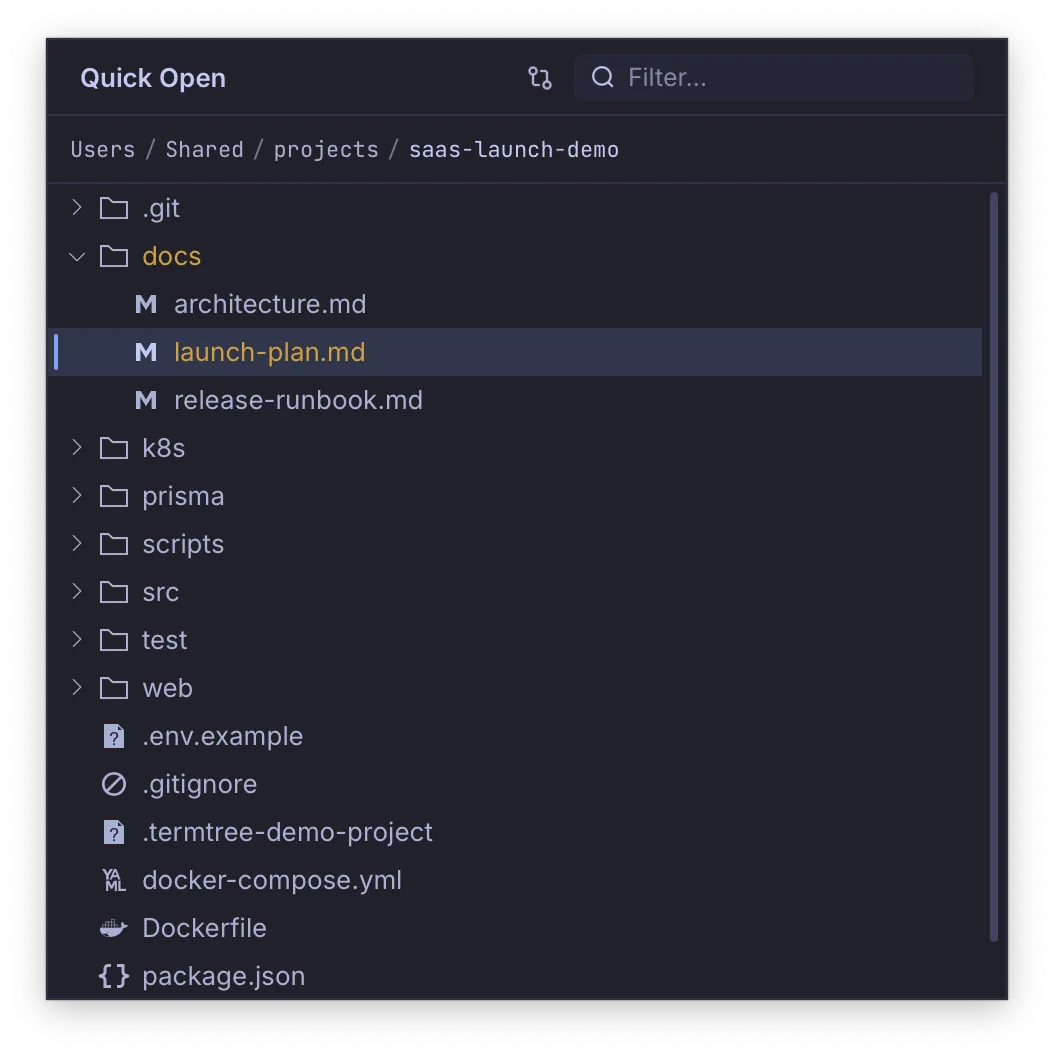
Opening Quick Open
Press Cmd+O / Ctrl+O with a terminal pane focused (or last-focused) to open the Quick Open dialog — a separate window from the main TermTree window.
Root resolution
Quick Open opens rooted at a default folder for the pane that launched it, resolved in order:
- The pane’s detected agent worktree root, if one is detected.
- Otherwise, the detected agent’s current working directory, if a recognized agent is running.
- Otherwise, the shell’s current working directory.
- Otherwise, your home directory.
Use the reset control in the dialog to return to this default root at any time. Clicking a folder link in terminal output opens Quick Open rooted at that folder instead, without changing the pane’s own default.
Breadcrumb tree
The dialog shows a lazy-loading tree of the current root’s contents, with a breadcrumb bar above it so you can jump back up to any ancestor folder without re-expanding the tree from scratch.
Type-to-filter
Start typing to filter by name across the current root, recursively. The filter:
- Matches multiple keywords and simple glob patterns.
- Ranks prefix matches above substring matches, and substring matches above deeper path matches.
- Matches folder names, not just file names — typing part of a folder’s name surfaces it and its contents.
If the recursive scan or the result set is large, Quick Open caps how much it searches or shows and tells you so, so you always know when you are seeing a partial result.
Git-status coloring
Files that are modified, added, untracked, deleted, or renamed relative to git are color-coded in the tree. A folder rolls up the status of its most significant changed descendant, so you can spot changes without expanding every branch.
Toggle Show changed files only to filter the tree down to just the files git reports as changed.
Per-pane memory
Quick Open remembers, per pane, the root you last used and which folders you had expanded — so reopening it for the same pane picks up where you left off.