Preview & Export
Markdown renders as formatted text instead of raw syntax, and Mermaid diagrams draw themselves — so you read an agent’s output the way it’s meant to look, not as source. An HTML file goes further and renders as a live page, complete with its own styling and scripts, so you can check a generated report or dashboard without opening a browser. Once you’re done reading, copy the content or export it to DOCX for someone who doesn’t have TermTree.
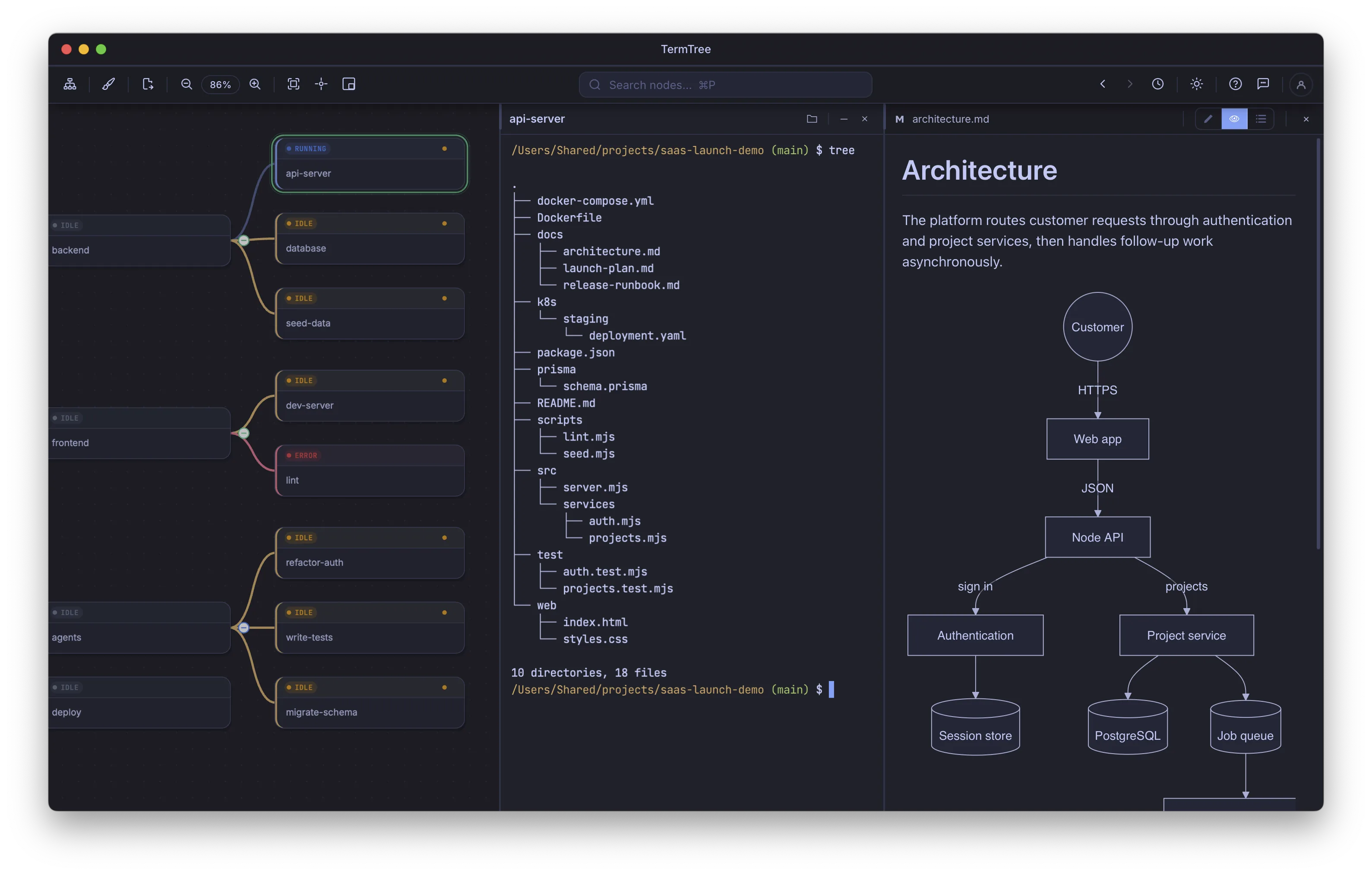
Markdown preview
Markdown files default to Preview mode when opened (switch to Editor with the mode toggle in the panel header, or see Editor & Viewer for how your choice is remembered per file).
Preview supports:
- Local images — relative image paths in the Markdown resolve and render.
- Cross-file links — clicking a link to another file navigates to it in the editor/viewer panel; a link to a
#headingin another file opens that file and scrolls to the matching heading.
Mermaid diagrams
A fenced code block using the exact ```mermaid language tag renders as a diagram in preview, themed to match your current Theme Gallery selection. Any other fence (```mmd, indented code, etc.) is left as plain code.
HTML preview
Opening an .html, .htm, or .xhtml file renders it as a live page in a sandboxed, opaque-origin iframe: its CSS applies and its JavaScript runs, but it has no access to TermTree itself.
The preview always renders the file as saved on disk — if you have unsaved edits, the preview shows “Showing saved version” rather than your in-progress changes.
Relative links and subresources (images, stylesheets, scripts) resolve within the file’s own directory and its subdirectories. References that climb out of that directory with ../, or that point at an absolute site root, do not resolve.
Copy and Save as DOCX
Right-click anywhere in a Markdown preview for:
- Copy — copies the current selection to your clipboard, as both formatted HTML and plain text. Select something first; the item is disabled when nothing is selected.
- Save as DOCX — opens the Export Options dialog, then exports the document to a
.docxfile.
Export Options lets you set:
- Page size and orientation (portrait/landscape)
- Margins — a preset (Normal, Narrow, Moderate, Wide, Office) or custom values, in inches, centimeters, millimeters, or points
- Header and footer margins
- Gutter and mirror margins (for double-sided printing)
Mermaid diagrams export as a plain code block, not a rendered image — the diagram source is preserved, but not its visual rendering.