Getting Started
TermTree is for running many tasks at once, each in its own terminal — often with an AI agent doing the work — without losing track of where things stand. You lay out the work as a tree of task nodes, launch a terminal into each node when it’s time to start, and use the map to see status and know where to step in. This page walks through that loop, starting with installation.
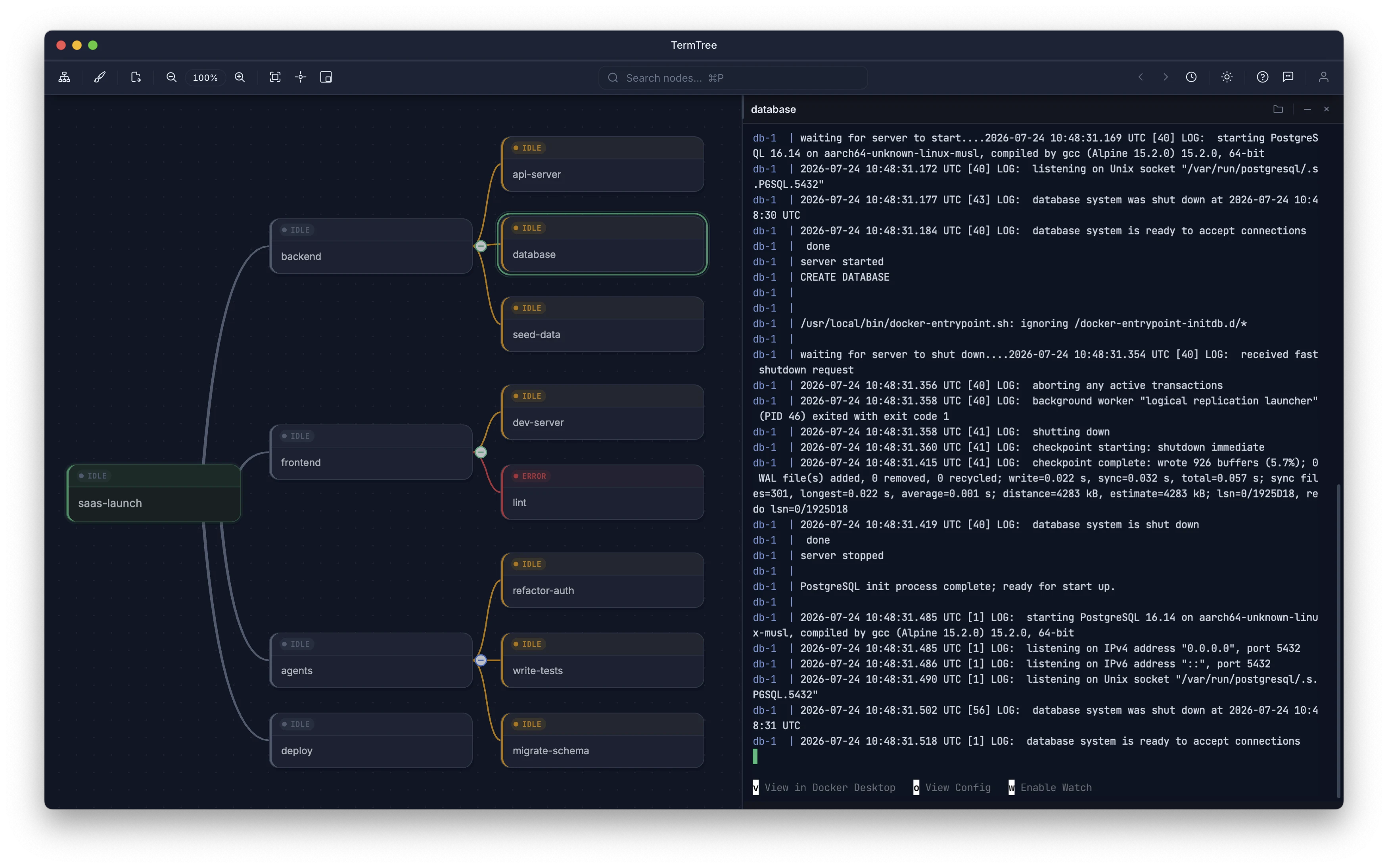
Install TermTree
Download TermTree from the download page. It’s available for macOS, Windows, and Linux.
- macOS — Open the
.dmgand drag TermTree to Applications. - Windows — Run the
.msiinstaller. - Linux — Install via
.deb,.rpm, or.AppImage.
Launch TermTree after installation. You’ll see a mind map canvas with a single root node.
Core concept: plan first, execute when ready
TermTree separates planning from execution. Build your task tree first — add nodes for each piece of work — then launch terminals when you’re ready to start.
The mind map serves as a plan before execution and a live dashboard during execution. Node status indicators update in real time as your terminals run.
Create your first nodes
- Select the root node (click it or use arrow keys).
- Press Tab to add a child node. Type a name and press Enter.
- Select that child and press Enter to add a sibling. Type a name and press Enter.
You now have a small task tree. Repeat to build out your plan.
Launch a terminal
Select any node and press Cmd+Shift+Enter (macOS) or Ctrl+Shift+Enter (Windows/Linux). A terminal session opens in the right panel, attached to that node.
The node’s status dot changes from gray to blue — indicating the terminal is active.
Three focus zones
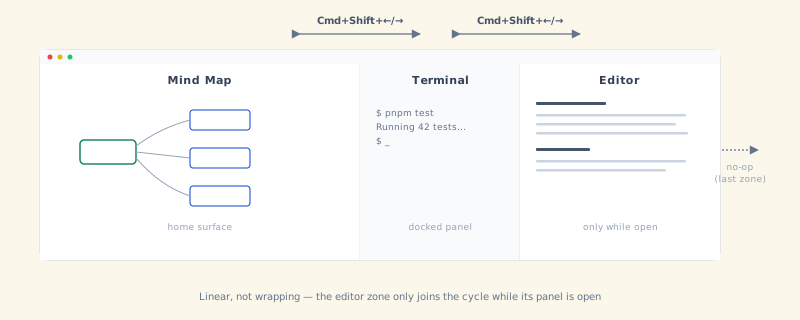
TermTree has three focus zones:
| Zone | What you can do |
|---|---|
| Mind map | Navigate nodes with arrow keys, add/delete/rename nodes |
| Terminal | Type commands, interact with running processes |
| Editor | View and edit any file you open from terminal output |
You can move between them entirely from the keyboard: Cmd+Shift+Left / Cmd+Shift+Right (Ctrl+Shift+Left / Ctrl+Shift+Right) step between zones in the order above. The traversal is linear rather than wrapping — pressing Right from the editor stays put, as does Left from the mind map — and the editor zone joins the sequence only while the editor panel is open. Clicking a node or clicking inside a terminal focuses that zone too, if you’d rather use the mouse.
See Editor & Viewer for how to open files — the terminal is TermTree’s file explorer, so any path you see in terminal output is one ⌘/Ctrl-click away from opening.
Monitor progress
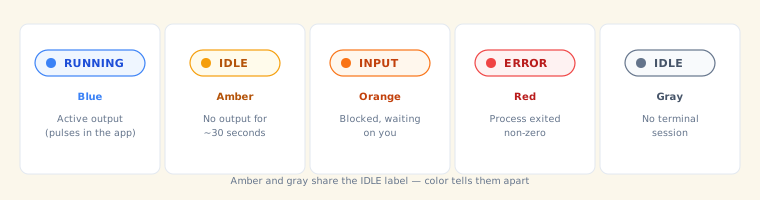
Each node shows a colored status dot:
| Color | Badge | Meaning |
|---|---|---|
| Blue (pulsing) | RUNNING | Active output |
| Amber | IDLE | No output for ~30 seconds |
| Orange | INPUT | Blocked, waiting on you |
| Red | ERROR | Process exited non-zero |
| Gray | IDLE | No terminal launched yet |
Gray IDLE (no session running) and amber IDLE (a session that has produced no recent output) share a label but not a color — hover a node to see which it is.
There’s no “done” or “complete” state — a process that exits cleanly (exit code 0) returns to gray IDLE, not a distinct “finished” indicator.
What’s next
- Mind Map — Learn all the ways to organize your task tree.
- Terminals — Deep dive into terminal management.
- Editor & Viewer — Open, edit, and review files from terminal output.
- Keyboard Shortcuts — Full shortcut reference.