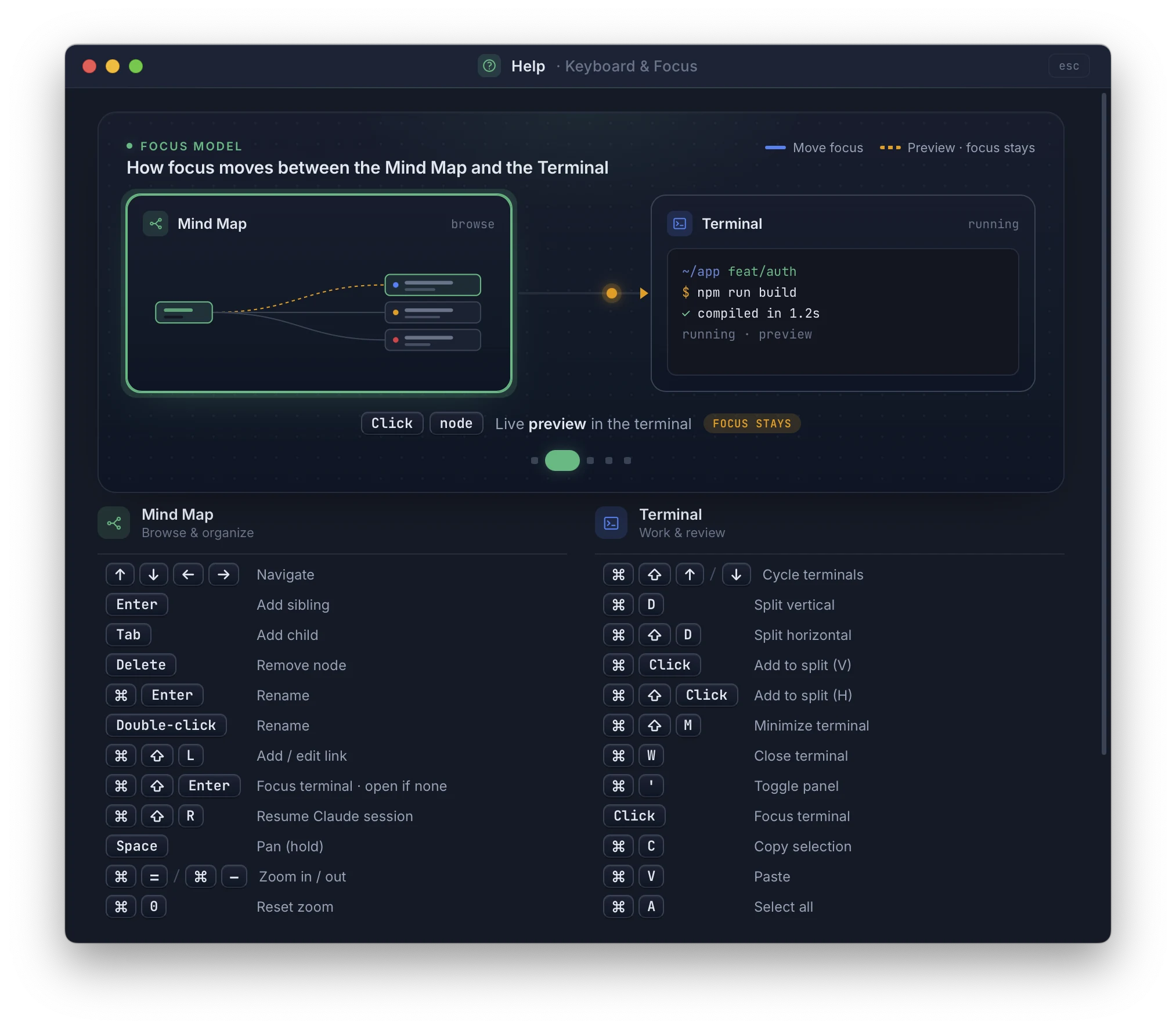
TermTree is built to be driven from the keyboard. Every core operation — creating, renaming, and deleting nodes; launching and resuming terminals; opening and navigating files; searching nodes and files; toggling theme and settings — has a shortcut, and every dialog (Quick Open, Quick Search, Recent Files, Theme Gallery) is arrow-key navigable once open. Two things still want the mouse: reordering the tree by dragging a node onto another (see Mind Map) and panning the canvas. A handful of view actions — collapse/expand, fit to screen, center view, minimap, layout, and terminal panel position — have no direct shortcut either, but all are reachable from the menu bar.
The shortcut set is organized around three focus zones — mind map, terminal, and editor — and Cmd+Shift+Left / Cmd+Shift+Right (Ctrl+Shift+Left / Ctrl+Shift+Right) step between them without touching the mouse. Learn that one shortcut and you can reach everything below it.
Press ? at any time in the app to open the keyboard shortcuts overlay.
Shortcuts use Cmd on macOS and Ctrl on Windows/Linux, except where noted.
Mind map zone
Node operations
Shortcut
Action
Tab
Add child node
Enter
Add sibling node
Delete / Backspace
Delete selected node (confirms first if it has children or terminals)
Cmd+Enter
Rename selected node
Double-click
Rename selected node
Cmd+Shift+L
Add / edit node link
Navigation
Shortcut
Action
Up / Down
Move between siblings
Left
Move to parent
Right
Move to first child
Canvas
Shortcut
Action
Hold Space + drag
Pan canvas
Cmd+=
Zoom in
Cmd+-
Zoom out
Cmd+0
Reset zoom
Escape
Cancel drag
Terminal zone
Session management
Shortcut
Action
Cmd+Shift+Enter
Launch terminal for selected node, and focus it
Cmd+Shift+R
Resume Claude session for selected node
Cmd+W
Close focused terminal (confirm)
Cmd+Shift+M
Minimize (hide) focused terminal
Cmd+‘
Toggle terminal panel
Focus
Shortcut
Action
Cmd+Shift+Right
Step right: mind map → terminal → editor
Cmd+Shift+Left
Step left: editor → terminal → mind map
The step is linear, not wrapping — Right from the editor and Left from the mind map both stay put. The editor zone joins the sequence only while the editor panel is open; with it closed, these are a straight two-zone toggle between the mind map and the terminal.
Cycling
Shortcut
Action
Cmd+Shift+Down
Next terminal
Cmd+Shift+Up
Previous terminal
While any terminal is awaiting input, both shortcuts cycle only among those — so you step through what needs you first, in either direction.
Splits
macOS
Windows/Linux
Action
Cmd+D
Alt+D
Split vertical (side by side)
Cmd+Shift+D
Alt+Shift+D
Split horizontal (stacked)
Cmd+Click node
Ctrl+Click node
Add node’s terminal to split (vertical)
Cmd+Shift+Click node
Ctrl+Shift+Click node
Add node’s terminal to split (horizontal)
Windows/Linux uses Alt+D rather than Ctrl+D, because Ctrl+D is reserved as end-of-file (EOF) in Git Bash, WSL, and Linux shells.
Find, copy, and paste
macOS
Windows/Linux
Action
Cmd+F
Ctrl+F
Open the terminal find bar
Escape
Escape
Close the find bar
Cmd+C
Ctrl+Shift+C
Copy selection
Cmd+V
Ctrl+Shift+V
Paste
Cmd+A
Ctrl+Shift+A
Select all
Editor zone
Shortcut
Action
Cmd+Shift+O
Recent Files
Cmd+[
Previous file
Cmd+]
Next file
Cmd+S
Save
Cmd+W
Close open file
On Windows/Linux, previous/next file are also available as Ctrl+Alt+Left / Ctrl+Alt+Right from the native menu, in addition to Ctrl+[ / Ctrl+].
Global
Shortcut
Action
?
Show keyboard shortcuts overlay
Cmd+P
Quick Search (find a node)
Cmd+O
Quick Open (find a file)
Cmd+Shift+T
Toggle dark / light theme
Cmd+Shift+E
Save mind map as image, or save the open Markdown preview as DOCX — whichever is active