Terminals
Each node can host its own real terminal — a live shell process, not a mocked-up view — so you can have many tasks running side by side, each keeping its own session and scrollback. Switch between nodes and each terminal is exactly as you left it, so you never lose your place across tasks.
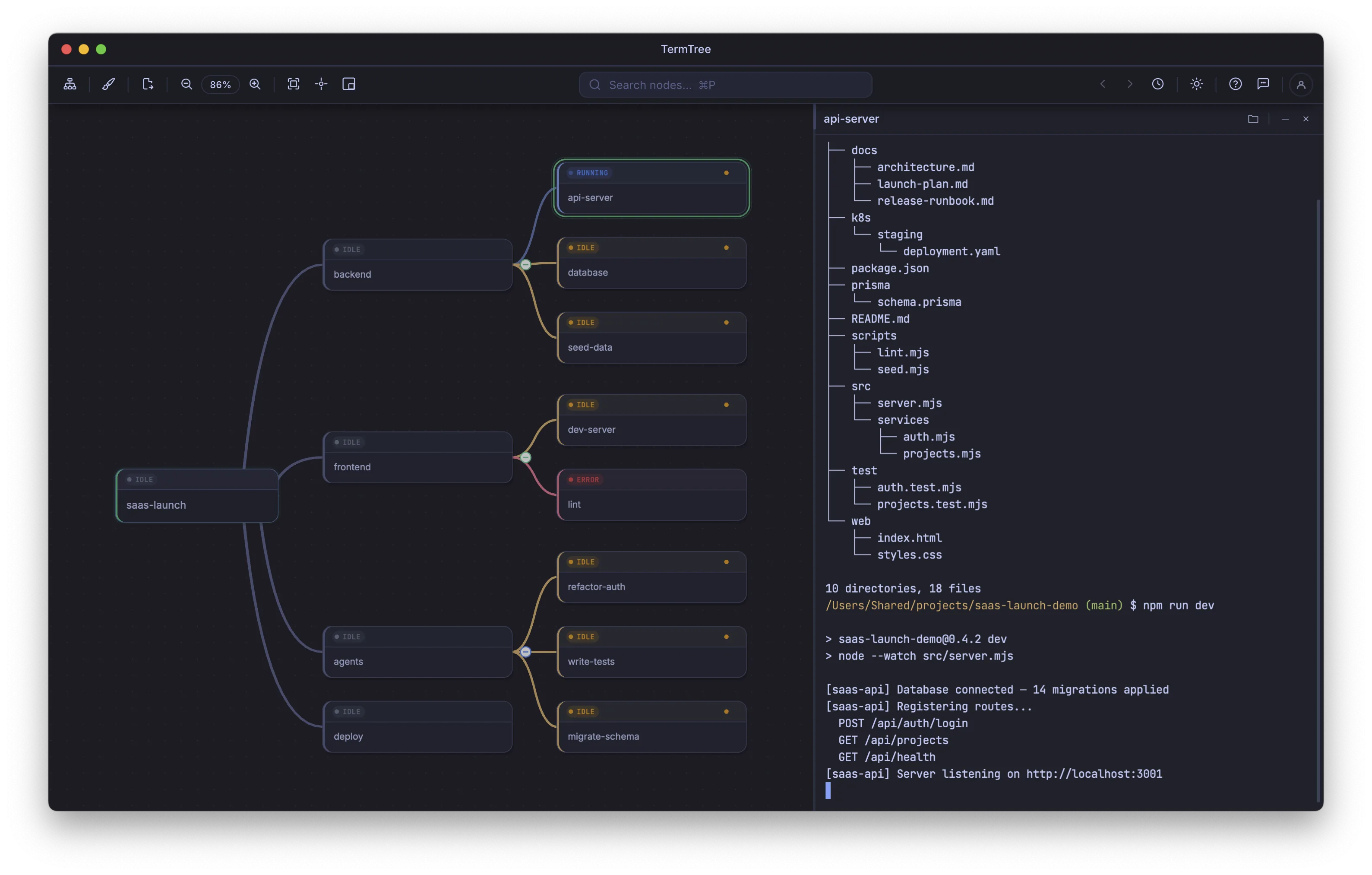
Launching a terminal
Select a node and press Cmd+Shift+Enter / Ctrl+Shift+Enter. A new shell session starts and appears in the terminal panel.
You can also right-click a node and choose Launch Terminal.
The node’s status indicator changes from gray to blue (active).
The terminal panel
The terminal panel appears on the right side of the screen by default; switch it to the bottom from the Window menu — Terminal Panel: Right or Terminal Panel: Bottom.
Each terminal shows:
- A title bar with the node’s label.
- A minimize button (−) to hide the terminal while keeping the session alive.
- A delete button to end the session after confirmation.
- A full terminal emulator with ANSI color support, scrollback, and interactive input.
Toggle the panel open or closed with Cmd+’ / Ctrl+’.
Focusing a terminal
There are several ways to focus a terminal for input:
| Method | Description |
|---|---|
| Click inside the terminal | Direct click |
| Cmd+Shift+Right | Focus the selected node’s terminal |
| Cmd+Shift+Enter | Launch and focus (if not yet launched) |
To return focus to the mind map:
| Method | Description |
|---|---|
| Click a node | Focus the mind map |
| Cmd+Shift+Left | Return to mind map |
Navigating between terminals
When you have multiple terminals open, use these shortcuts to cycle through them:
| Shortcut | Action |
|---|---|
| Cmd+Shift+Down / Ctrl+Shift+Down | Next terminal |
| Cmd+Shift+Up / Ctrl+Shift+Up | Previous terminal |
If any terminals are waiting for input, these shortcuts cycle through those terminals first. Otherwise they cycle through all open terminals.
You can also click any node in the mind map to show its terminal. Arrow key navigation in the mind map auto-shows each node’s terminal as you move through the tree.
Auto-show behavior
When you select a node (by clicking or with arrow keys):
- If the node has a launched terminal, it appears in the panel automatically.
- All other terminals are hidden.
- Focus stays in the mind map until you explicitly move it to the terminal.
This means you can browse terminal output with arrow keys without losing your place in the mind map.
Hiding a terminal
Click the minimize button (−) on the terminal title bar, or press Cmd+Shift+M / Ctrl+Shift+M.
The terminal disappears from the panel but the session keeps running in the background. Select the node again to bring it back.
Cmd+M is reserved for the standard macOS window-minimize — it does not affect the terminal.
Finding text in a terminal
Press Cmd+F / Ctrl+F while a terminal is focused to open the find bar. It highlights matches in the scrollback and supports:
- Next / previous match navigation.
- A match counter.
- Toggles for case-sensitive, whole word, and regex matching.
Press Escape to close the find bar.
Opening links from terminal output
TermTree detects URLs and file paths in terminal output (including OSC 8 hyperlinks written by tools that support them). Right-click a detected link to open a context menu with:
- Open Link / Open File / Open Folder — whichever applies to that link, opened in your browser, TermTree’s editor/viewer panel, or your file manager.
- Set node link — attaches the link’s URL to the node (URL links only), shown next time you right-click the node itself. See Mind Map.
⌘/Ctrl-clicking a link performs the same open action directly, without the menu.
Detected ticket links
In Settings → Autolink, you can configure ticket patterns and URL templates. When a matching reference appears in the terminal of a node that has no link yet, TermTree shows a non-modal Link detected notification for that node, listing the node and the proposed URL. The URL is clickable — click it to open the page in your browser and check it before deciding; the notification stays open. Select Use link to save the proposed URL to the node, or Ignore (or close it) to leave the node unlinked.
A node that already has a link is never interrupted this way — your own link always wins, whatever URL it points to. Remove the link and the node becomes eligible for proposals again. Detection never changes links silently and never steals terminal focus.
Closing a terminal
Click the delete button on the terminal title bar, or press Cmd+W / Ctrl+W.
A confirmation dialog appears. Confirming kills the underlying shell process. The dialog also offers an option to delete the mind map node at the same time.
Deleting a node with active terminals
If you delete a node that has running terminals (or children with running terminals), a confirmation dialog lists everything that will be removed. Confirming kills all active sessions under that node.