Appearance
You’ll be looking at a dense canvas for hours at a stretch, so the theme, the direction your tree grows, and where the terminal panel sits are here to keep that legible and comfortable — and to fit the shape of whatever tree you’re building.
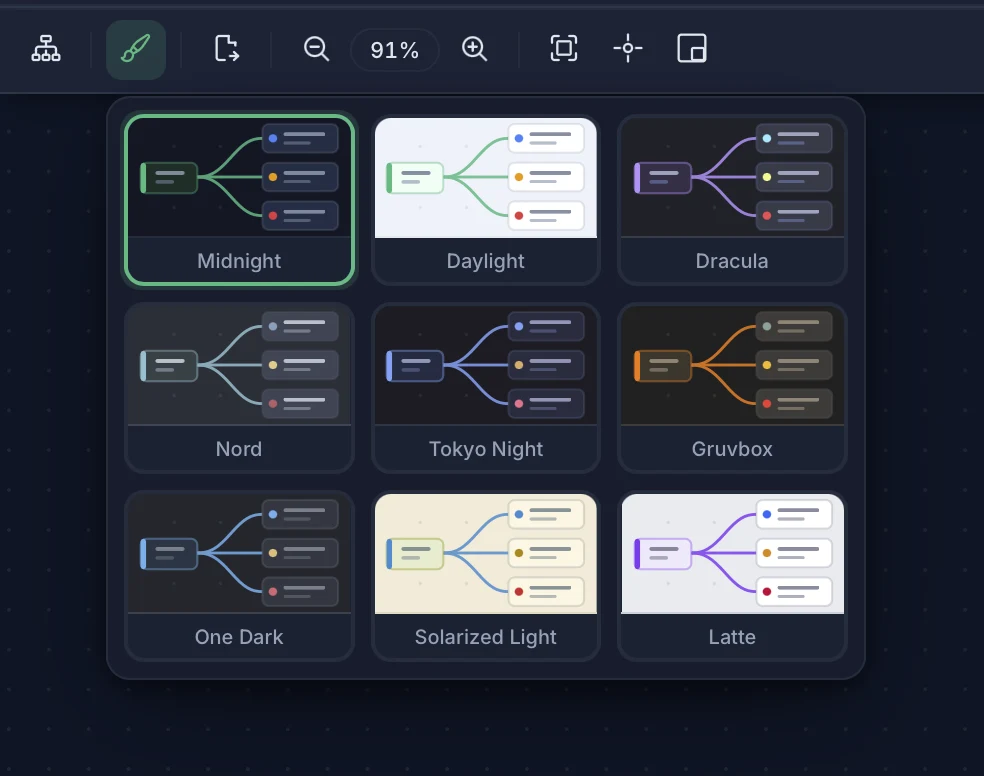
Dark and light theme
Toggle between dark and light mode with Cmd+Shift+T / Ctrl+Shift+T, or from View > Toggle Theme in the menu.
Theme Gallery
TermTree ships nine built-in app themes, each covering the mind map canvas, terminal panel, and editor. Click the palette icon in the toolbar to open the Theme Gallery and pick one:
| Theme | Mode |
|---|---|
| Midnight | Dark |
| Daylight | Light |
| Dracula | Dark |
| Nord | Dark |
| Tokyo Night | Dark |
| Gruvbox | Dark |
| One Dark | Dark |
| Solarized Light | Light |
| Latte | Light |
The mind map canvas follows whichever app theme is active — there’s no separate mind map color picker. Your theme choice is saved and restored on next launch.
Tree layout
Control the direction your tree grows. TermTree offers eight layouts:
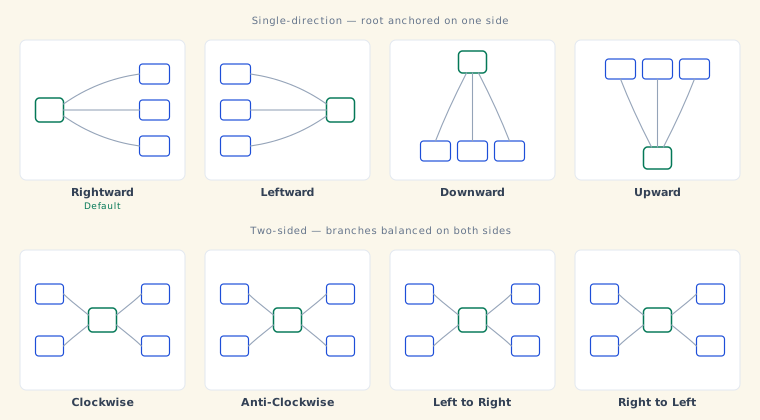
| Layout | Description |
|---|---|
| Rightward (default) | Single-direction tree, growing left to right |
| Leftward | Single-direction tree, growing right to left |
| Downward | Single-direction tree, growing top to bottom |
| Upward | Single-direction tree, growing bottom to top |
| Clockwise | Classic two-sided mind map, root centered, branches split across both sides |
| Anti-Clockwise | Classic two-sided mind map, mirrored ordering of Clockwise |
| Left to Right | Classic two-sided mind map, branch split variant |
| Right to Left | Classic two-sided mind map, branch split variant |
Switch layouts from View > Layout in the menu, or from the layout gallery in the toolbar.
Language
TermTree’s interface is available in 11 languages: English, Simplified Chinese, Traditional Chinese, Japanese, Korean, German, French, Spanish, Italian, Brazilian Portuguese, and Russian. Change it from Settings > General > Language (Cmd+, / Ctrl+,). The new language applies once you choose Apply or OK — no restart needed.
Terminal panel position
The terminal panel can be docked to the right (default) or bottom of the screen. Pick one from the Window menu — Terminal Panel: Right or Terminal Panel: Bottom.
The divider between the mind map and terminal panel is draggable — adjust the split ratio to your preference.
Viewport controls
Zoom
| Shortcut | Action |
|---|---|
| Cmd+= / Ctrl+= | Zoom in |
| Cmd+- / Ctrl+- | Zoom out |
| Cmd+0 / Ctrl+0 | Reset to 100% |
You can also use the zoom controls in the toolbar (−, percentage indicator, +).
Pan
Hold Space and drag the canvas to pan around the mind map.
Fit and center
- Fit to Screen — Adjusts zoom so all nodes are visible. Available in the View menu and toolbar.
- Center View — Centers the viewport on the currently selected node.
Minimap
Toggle the minimap from the View menu or toolbar. It shows a small overview of your entire tree.
Settings
Open Settings with Cmd+, / Ctrl+,. It has four pages:
| Page | Controls |
|---|---|
| General | App theme, language, UI font |
| Mind Map | Connection line width and style, node spacing, animate active connections |
| Terminal | Terminal font size, default shell |
| Autolink | Autolink rules — see Mind Map |