Split Terminals
You often need to see a second terminal alongside the first — to check a database, tail a log, or run a quick command — without losing sight of the original. Splitting the terminal panel does exactly that: two or more terminals stay visible at the same time, each still a full, independent session.
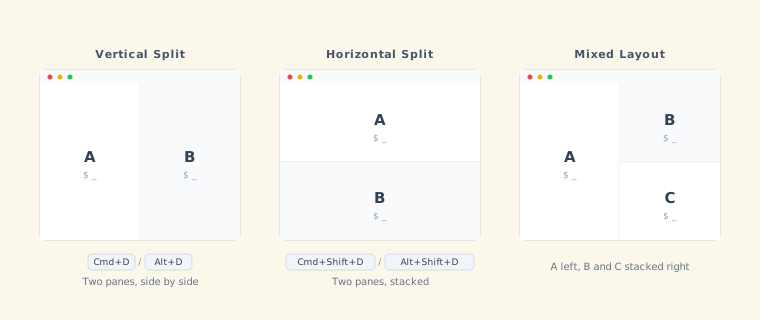
Creating a split
While a terminal is focused, press one of these shortcuts to split the view:
| Shortcut | Layout |
|---|---|
| Cmd+D (macOS) / Alt+D (Windows/Linux) | Vertical split — side by side |
| Cmd+Shift+D (macOS) / Alt+Shift+D (Windows/Linux) | Horizontal split — stacked top and bottom |
This creates a new child node of the current node, with a fresh terminal launched next to the current one. TermTree starts it at the detected worktree root when one is available; otherwise it uses the agent’s current directory, then the live shell’s directory as a fallback. The split lands as a child because it represents a subtask of the terminal you split from.
On Windows/Linux the split shortcut is Alt+D rather than Ctrl+D, because Ctrl+D is reserved as end-of-file (EOF) in Git Bash, WSL, and Linux shells.
Adding existing terminals to a split
You can pull any node’s terminal into the current split group:
| Method | Layout |
|---|---|
| Cmd+Click (macOS) / Ctrl+Click (Windows/Linux) a node | Add as vertical split |
| Cmd+Shift+Click (macOS) / Ctrl+Shift+Click (Windows/Linux) a node | Add as horizontal split |
If the clicked node doesn’t have a terminal yet, one is launched automatically.
Nodes whose terminals are grouped together receive a secondary highlight on the mind map, so you can see which nodes are in the current split.
Mixed layouts
You can combine vertical and horizontal splits. For example:
- Start with terminal A focused.
- Press Cmd+D (macOS) / Alt+D (Windows/Linux) — terminal B appears to the right (vertical split).
- Focus terminal B and press Cmd+Shift+D (macOS) / Alt+Shift+D (Windows/Linux) — terminal C appears below B (horizontal split).
Result: A on the left, B and C stacked on the right.
Removing a terminal from the split
Press Cmd+Shift+M / Ctrl+Shift+M to minimize the focused terminal. It hides from the split group and the layout reflows to fill the space.
If only one terminal remains after minimizing, the split group dissolves automatically.
Dissolving a split
Any of these actions dissolve the entire split group (all grouped terminals hide, leaving only the target terminal visible):
- Click a node not in the split group.
- Arrow key navigation in the mind map.
- Cycle terminals with Cmd+Shift+Up/Down to a terminal outside the group.
- Press Escape from the terminal zone.
The underlying terminal sessions continue running — only the grouped view is dismissed.