Quick Search
As your tree grows past a dozen nodes, scanning the map for one specific task gets slow, especially if it’s tucked inside a collapsed branch. Quick Search jumps you straight to any node the moment you can name it, no scrolling or expanding required. To find and open a file in a worktree instead, see Quick Open (Cmd+O) — the two are separate features.
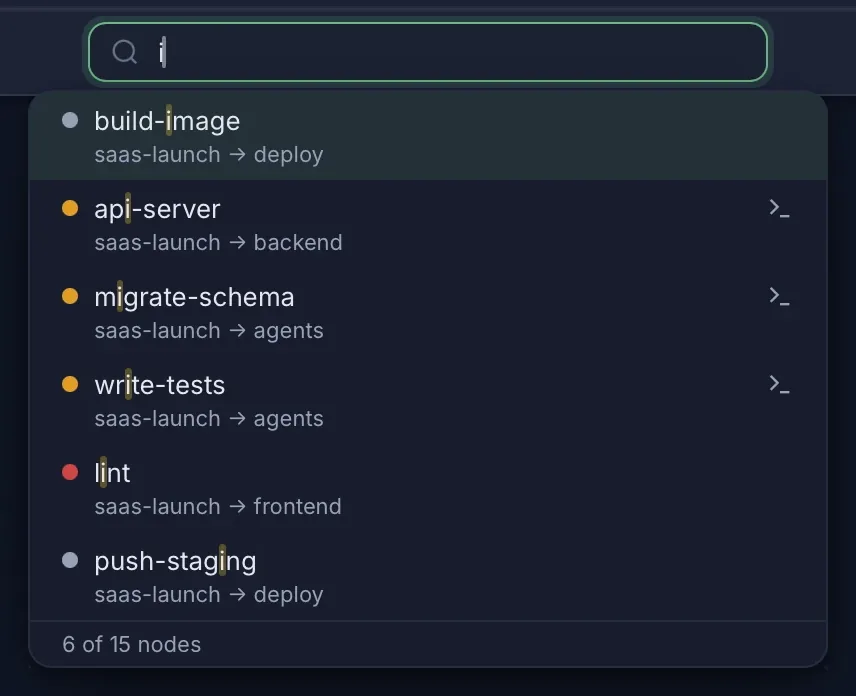
Opening Quick Search
Press Cmd+P / Ctrl+P to open the search box. You can also click the search box in the toolbar or use Edit > Quick Search from the menu.
Searching for nodes
Start typing to filter nodes by label. Search is case-insensitive and splits the query into words; a node matches when every word appears somewhere in its label, in any order. A one-word query behaves like a substring search. Results update in real time as you type.
Navigating results
| Key | Action |
|---|---|
| Up / Down | Move through results |
| Enter | Navigate to the selected node |
| Escape | Close search and return to previous focus |
When you press Enter, TermTree:
- Selects the node in the mind map.
- Centers the viewport on it.
- Expands any collapsed parent nodes along the path.
- Shows the node’s terminal in the panel (if one is launched).
Result ordering
Empty query (when you first open search): Open terminals appear first, sorted by most recently used. Remaining nodes follow in tree order.
With a query: Results are ranked by relevance — exact full-label matches first, then matches where every query word starts a whole word, then general substring matches.
What each result shows
Each result in the dropdown displays:
- Status dot — Colored indicator matching the node’s current state: blue (pulsing) for running, amber for idle, orange for blocked awaiting input, red for error, gray for no terminal launched.
- Node label — With each matched query word highlighted.
- Terminal badge — Shown if the node has an open terminal.
- Breadcrumb path — The full path through the tree (e.g., “Root > Auth Refactor > user-service”) so you can distinguish nodes with similar names.